
This page will give you step by step how to guides for important Famly tasks including how to mark your child as absent.
Here is a link to the famly app or click the logo to easily download the app on your device. https://www.famly.co/

—————————————————————–
How to mark your child as absent
Please only mark your child/children as absent if they are not attending after school club not if they are going to be absent for breakfast club.
It is important that we have an update to date account of which children will not be attending after school club, that way it will make it a lot easier when we are creating registers to see the children that will be attending. In order to do this we need parents to mark their child/children absent as soon as possible (ideally at least 1 hour before collection time – 3:00pm).
This also applies for school ran clubs. If you are going to collect your child/children from a school ran club instead of them coming to after school club be mark them absent (ideally at least 1 hour before the club finishing).
We ask that you do not contact a member of staff to provide information of your child/children not attending instead mark them as absent directly on the Famly app as explained below.
Step by step guide to marking your child as absent:
- Log in to the Famly app.
- Click on your child’s profile, in the menu to the left.
- Click Report Sick, Absent, or Holiday on the Activity tab.
- A pop-up window opens for you to fill in the required information (as below).
- When you have filled in the requested fields, finish by pressing Confirm.

—————————————————————–
How to view future bookings
The Bookings Tab on your Child’s Profile
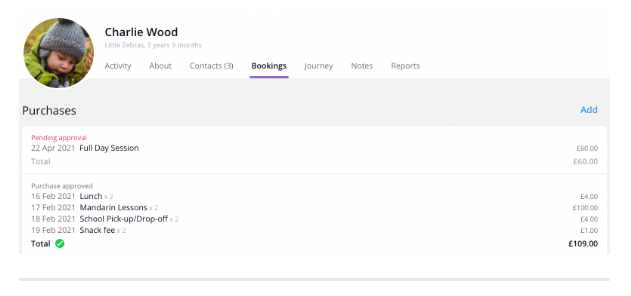
The Bookings tab on your child’s profile is where you can view any extra sessions you’ve booked in for your child/children (this only applies to adhoc or playscheme bookings).
If you child/children is booked in to a regular breakfast/after school club space this will run continuously throughout the year unless it is cancelled and therefore does not show up in the bookings tab.
You can check which of your requests for extra care have been approved by the setting and which are still awaiting approval (see below).
—————————————————————–
How to cancel/amend adhoc bookings
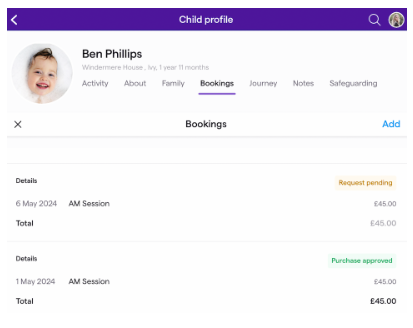
You will receive a notification and an email if your care is approved, or an email only if your care is declined. You can also check whether care is approved or pending approval in the Bookings tab where it’ll say Pending or Purchase approved
If the care you’ve requested is either an adhoc or playscheme booking and (has not yet been approved therefore displaying as ‘pending’) , you can cancel or amend it. To do this:
- On the Bookings tab, tap on the unapproved requested care you want to cancel
- An overview of your request will open up
- In the Selected items section, click on the three dots
- Tap Cancel to confirm
Once you had cancelled the booking you wish to amend, you can then re-book the booking you want.
—————————————————————–
How to Review/Complete your child’s Permissions
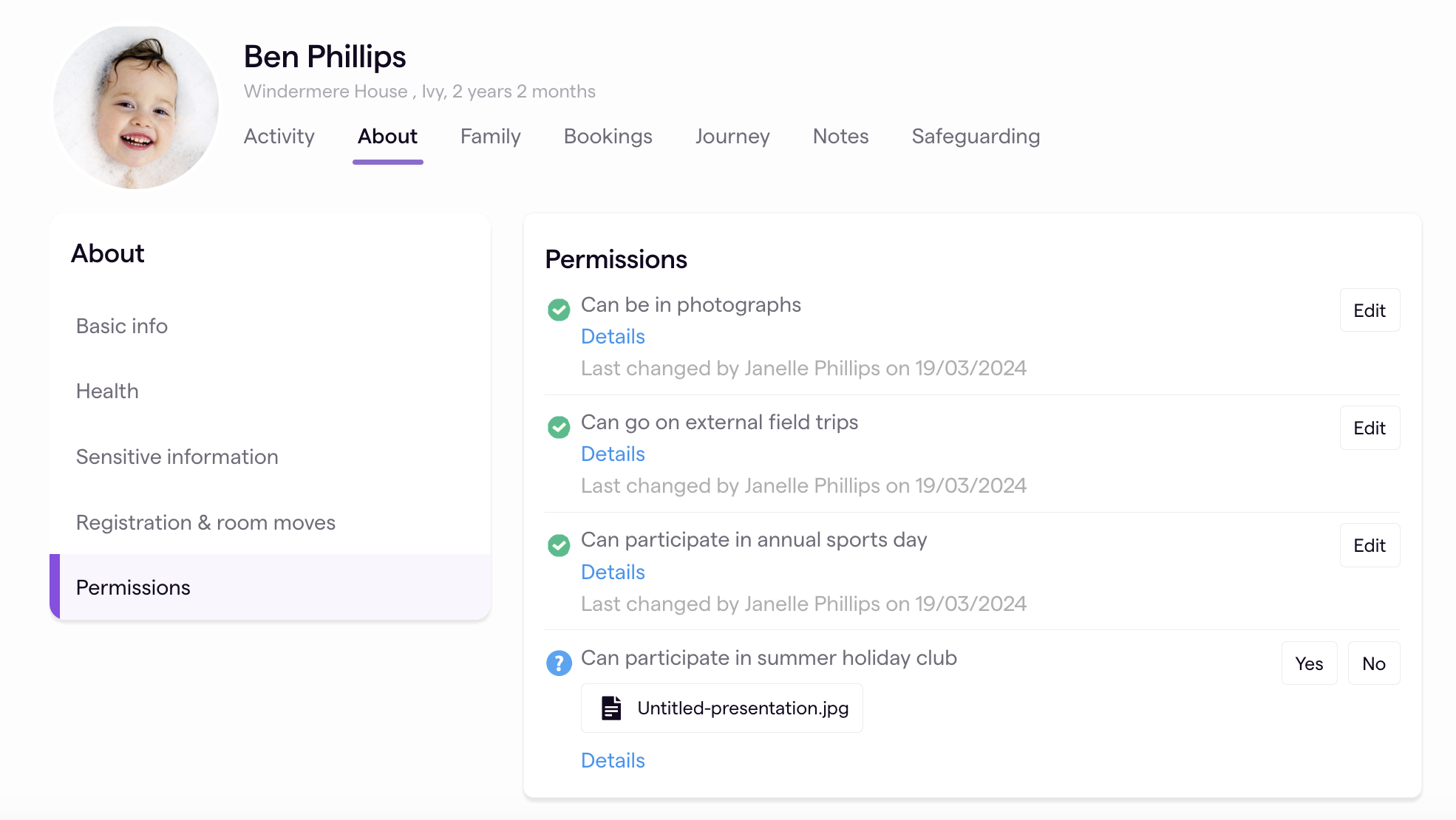
It is important you complete the permissions tab for your child/children as this is what we use when determining whether a child can take part in an activity, have their picture taken or watch a specific movie etc. To do this;
Access Your Child’s Profile:
- Open the Famly app and head to your child’s profile
- Navigate to the About tab
- Then go to Permissions
Find and Update Permissions:
- Once you’re in the Permissions section, you’ll see all the permissions your child’s setting has created
- Choose Yes or No for new or unanswered permissions to give your consent, or click Edit to update your existing answers
—————————————————————–
Adding a Contact to your Child’s Profile in Famly
It is important we have current and relevant contact information for parents, carers and family members as this is how we contact you should we need to regarding your child/children. Before you can add an additional contact person to a child, you need to have the name of the person and their mobile number.
To add a contact:
- Head to your child’s profile
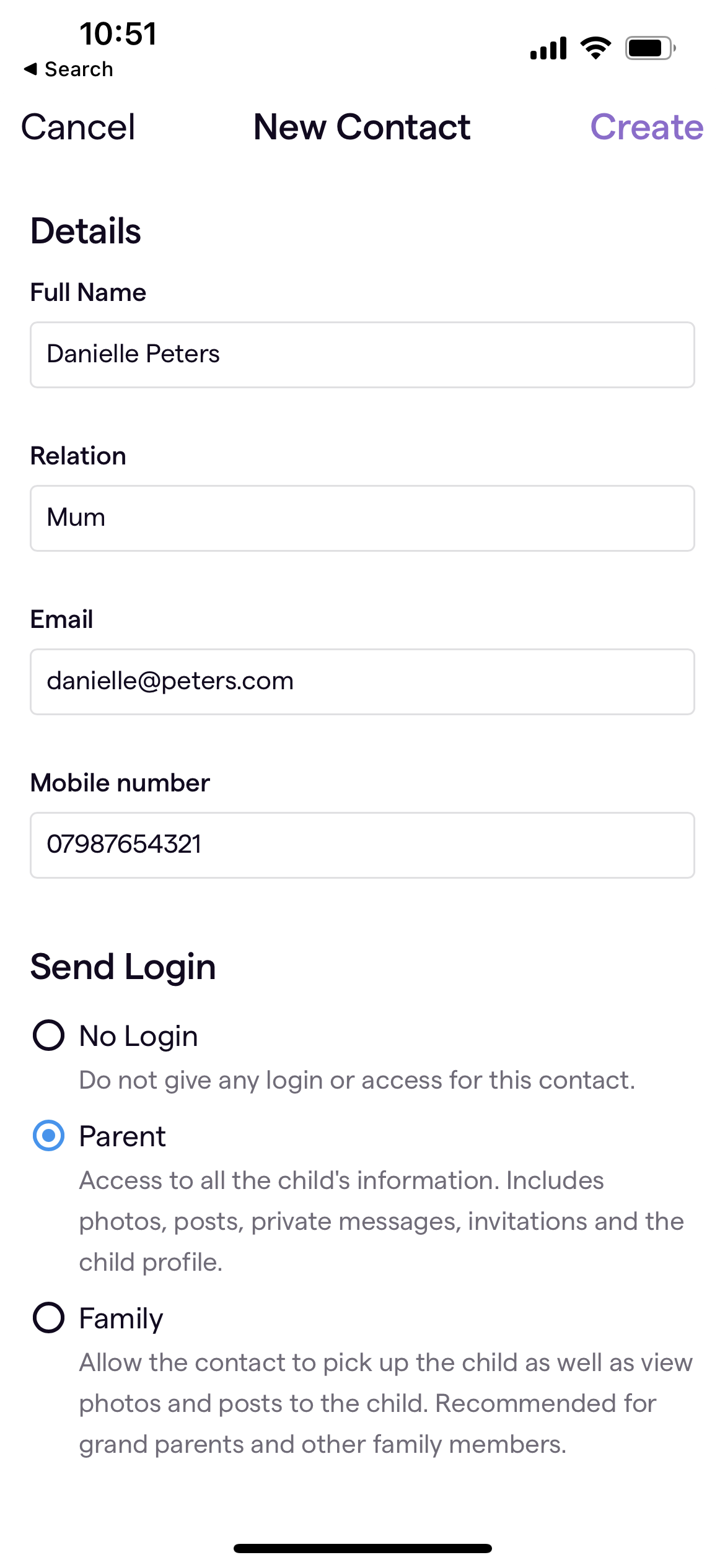
- Find the Contacts tab and tap on Add Contact in the top right-hand corner.
- Now, just fill in the relevant fields for your new contact and assign them a login type:
—————————————————————–
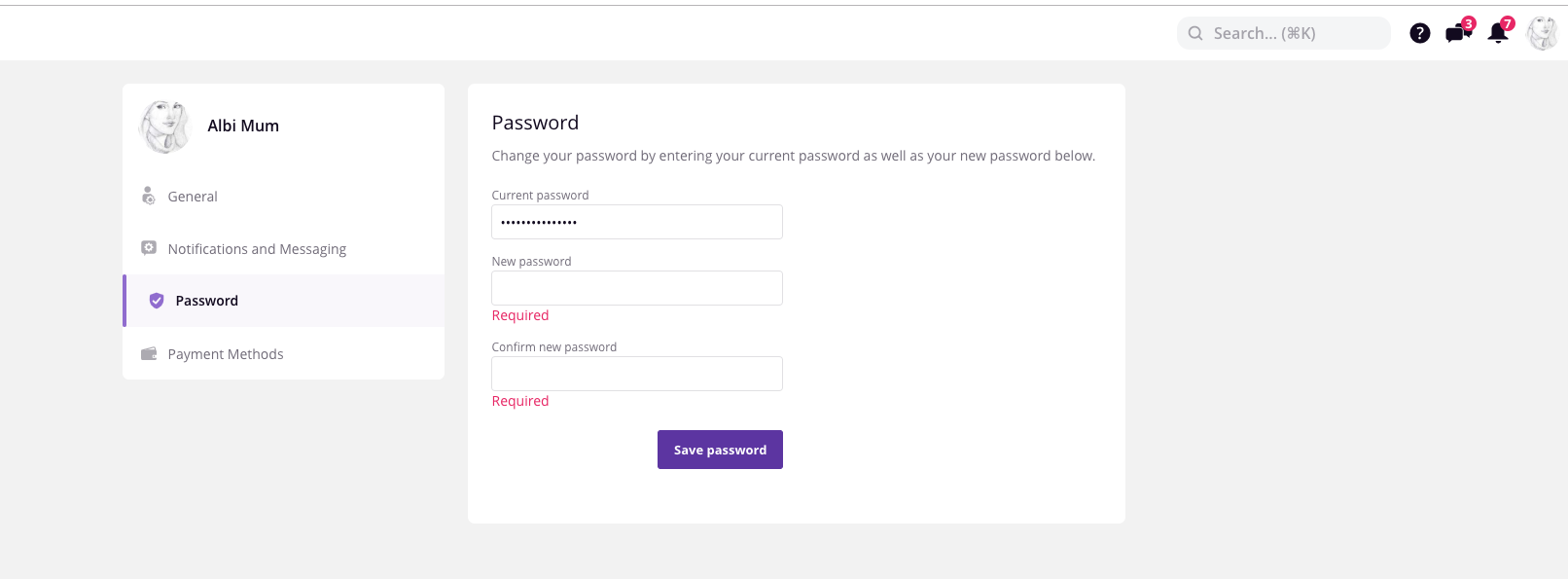
How do I change my password?
In order to change your password, just follow the instructions below:
- Log on to Famly.
- Access ‘Your Settings’ in the top right corner of the page under your photo.
- Change your password by entering your current password as well as your new password (as below).
I forgot my password
If you have forgotten your password, you can reset it and create a new one afterwards. To reset your password, start by clicking below, then follow the instructions.
Reset password
- If you have entered your email correctly in the page linked to above, you will receive an email from with a link.
Note that emails from Famly can end up in your email account’s spam filter. - Open the email and click on the link ‘Click here to reset your password’.
If the link does not work, you should copy it from the search field and paste it into another browser (e.g. Google Chrome or Firefox). - A new page will open
- Enter your new password where prompted and repeat it to confirm.
N.B. We no longer allow the password to be autofilled, or have the ‘remember me‘ option on logging in, so be sure to choose a password you’ll remember - Press ‘Save’
- Now you have changed your password and you will receive an email confirmation that it has been changed
 Ashton Gate Out of School Care